Xfce Mailwach Plugin 1.1.0 Released
After a good two and a half years of being lazy, I’ve finally found some time to work on the Mailwatch plugin, and I have a new release ready too!
There’s lots of chewy goodness in this release. Here are some useful links:
As always, please report bugs over at the Xfce bug tracker.
Enjoy!
Xfce announces alpha release of version 4.6
After about a year and a half of development, the Xfce team has announced the alpha release of Xfce 4.6, codenamed “Pinky” “Pinkie”.
Xfce is the desktop environment and main reason for the existence of Xubuntu. It provides the file manager, panels and much more, keeping your desktop fast yet easy to use. Thus, Xfce is one of the most important parts of Xubuntu, and the 4.4 release has been enjoyed by many users of Xubuntu since it was released.
Obviously, the 4.6 release will be very significant for Xubuntu, and this is an important milestone in the road towards that release. While it was initially hoped that this release would make it into Xubuntu 8.10 (codenamed “Intrepid Ibex”), the Xfce release schedule suggests that, with three beta releases and two release candidated still scheduled, that target won’t be met. However, you can expect to see the new release in Xubuntu 9.04 (codename “Jaunty Jackalope”), and if you’re running 8.10 you can try the alpha release by adding the xubuntu-dev PPA to your software sources. (Note: at the time of writing this the packaged version is not this actual alpha but a version before that, however, this alpha will be packaged soon.)
The new version of Xfce comes with many new features. Xfce now has a new configuration backend called xfconf, similar to gconf, but simpler and easier to work with. This brings more flexibility and better integration between Xfce components. You can now control your desktop settings through the command-line – this is not only handy for people helping on IRC (i.e. there is no more need to guide the user through all kinds of settings dialogs – though, IMHO, that would be less confusing for the user), it also means automated scripts can easily update your settings. One use I see for this is being able to change your keyboard layout using a key combination, an oft-requested feature by programmers.
Speaking of key combinations: the confusing keyboard shortcut-themes have been removed and conflicts between keyboard shortcuts and window manager shortcuts are now easily resolved. All these new settings also come with updated settings dialogs, which can be started standalone as they are now, but also embedded into the settings manager – a feature of which Jannis made a screencast.

Furthermore, Xfce now ships libxfce4menu. This is a software library aiming to implement the menu standard also implemented by GNOME and KDE and partly implemented by Xfce 4.4. While it is currently in use only by the desktop and the Appfinder (the latter of which has been completely rewritten to support libxfce4menu), it paves the way for a proper menu plugin in the panel that you can actually edit.
Apart from the libxfce4menu support, the desktop manager xfdesktop has also received a few small improvements over the previous version. It has a redesigned preferences dialog, includes a few more options for the desktop background (such as colour saturation adjustment), and can now automatically start and stop managing a new desktop when you respectively plug or unplug a monitor.
Finally, the Xfce mixer plugin has been completely rewritten to use gstreamer. One effect this has is that Xubuntu will probably definitely be switching to gstreamer-based applications (Xubuntu used to include a xine version of Totem, the movie player, but recently switched to the gstreamer-based version). The biggest benefit this brings users is that it will automatically ask to search for additional media support when it is not installed yet, which happens e.g. when you try to play an MP3-file on a freshly installed Xubuntu.
All in all, though not as big as 4.4 was, this is shaping up to be another fine release of Xfce that has me looking forward to it.


Restoring the Xfce panels
One question that people looking for help with Xubuntu often have is some form of “my panels/taskbar/menu disappeared”. Unfortunately, this is something that happens quite frequently.
The good news is that this is fixed easily. All that’s required is to press Alt+F2 to bring forward the Run program window, and run the command xfce4-panel.

Not only is this a quick fix for the problem, it also makes for a quick blog post that might still help quite a few people 
Update: Xubuntu 9.04 will include Xfce 4.6 which should be able to automatically restore the panel in the event of a crash. Hooray 
Update to that: According to willerlite, the panels do not automatically re-appear. Hmm :S


Git Snapshot Versioning?
With our SVN repository, we version SVN snapshots using the SVN revision number – we tack “svn-r$REVISION” on the end of the normal version number. This works well, and it’s easy to tell if a given snapshot is newer or older than another one.
Git doesn’t have revision numbers. Commits are identified by SHA1 checksums. Since these are “random,” there’s no way to tell chronological order. How are other people doing git snapshot versioning? The best I’ve come up with is to parse git-log output to get the date and time of the last commit, and then do something like X.Y.Zgit-YYYYMMDD.HHMMSS… which is rather long and ugly. I guess it would be ok to use a 2-digit year here, though. And maybe drop the seconds bit, but I think it’s decently possible to have more than one commit in the same minute. But still… long and ugly.
Any other ideas? My requirements are simple: easy to tell based on just the version string if a snapshot is older or newer than another, must be able to automatically generate this tag, and must be able to identify the exact HEAD that the snapshot was made from.
Sharing the love with BitTorrent
Xubuntu 8.04 is out! This release, along with those of Ubuntu, Kubuntu and whatnot, means that the Ubuntu servers are going to have a hard time with everybody and their stork downloading these new releases at the same time. Being the good open source citizen that you are, you are probably more than willing to take some of the load. Look no further, as BitTorrent is here to save the day!
In short, BitTorrent allows you to download files from other people, meanwhile sharing the parts you have already downloaded with other people who, just like you, are eager to try out the latest and greatest the open source community has to offer.
To download files using BitTorrent, you need a BitTorrent client. Since Xubuntu 8.04 includes Transmission, that is what we will be using. If you’re not using 8.04, make sure to install it.
The first thing we need, is a torrent file, a file with a name ending in .torrent that contains all the information Transmission needs to download the appropriate files. The Xubuntu 8.04 torrent can be downloaded from Ubuntu’s torrent website, where you can select the graphical Desktop CD (which is what most people want) or the text-based Alternate Install CD. We want the torrent files for Intel x86 architectures (most computers) or for AMD64 architectures (you’d probably know if you need this, using 64 Bit). A torrent file is not that big, so it should not take too long to download and does not place much of a burden on the servers.
After having downloaded the file to wherever you like, open up Transmission from Applications->Network->Transmission.
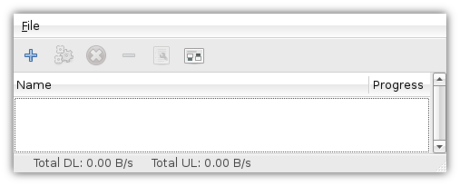
When newly installed, Transmission will download all files into the same directory as the torrent file. Instead of adapting to software (by remembering where it downloads files to), I make software adapt to me, so when I open a torrent file with Transmission, I want it to ask me where I want the files to be downloaded to.
Luckily, this is easy: simply open File->Preferences. While the preferences window is filled with cryptic terminology, the option I’m looking for is quickly found: all I need to do, is check the checkbox in front of Always prompt for download directory.
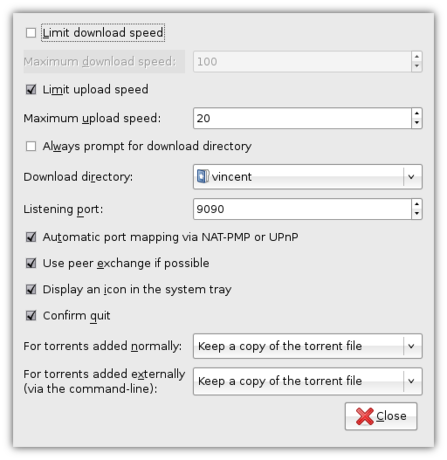
You can configure a whole host of additional options in the prefences window, such as the maximum download and upload speed. Be aware, though, that if you lower the maximum upload speed (i.e. the speed with which you are sharing the files with other people), the download speed will also decrease, so as to encourage everybody to share as much as they can.
When you’re done configuring Transmission, click Close in the Prefences window – it’s time to start downloading! Click File->Add and locate the torrent file you downloaded earlier. After you’ve opened the file and selected a target folder, Transmission will start downloading. While it will still be a long wait (the Xubuntu ISO image is a whopping 544 MB), if a lot of people are sharing the love then it’ll be faster than a direct download, and you’re helping other users at the same time.
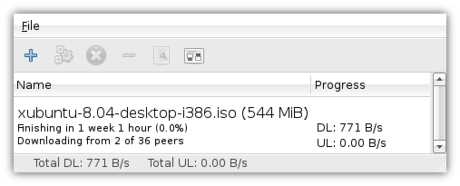
Once you’re done downloading, you’ll want to verify that the file you downloaded is the correct one. After you’ve done that, the big moment is there: you can install Xubuntu!
Don’t close Transmission though! If you leave the window open after your download has completed, Transmission will continue sharing the downloaded file with other users – this is called seeding and is a good habit if you want to be a Nice Guy. You can also resume seeding after you’ve closed a torrent – simply re-open the torrent file and select the same download location.
All in all, while often associated with illegal downloading, there are plently of legit situations in which BitTorrent saves the day. Now spread the love!


