Thunar: Image Preview and Hidden Preferences
Welcome back, it's been a while!
Where have I been?
I haven't had much time to actively contribute to Xfce in the past few months. Between mentoring Amrit for GSoC and completing my undegraduate thesis, I wasn't able to write patches at my normal pace. Things have started to pick back up, now that I've finished my undegraduate studies. I still won't be able to work on Xfce as much as I used to. In addition to starting my Master's degree, I have joined the AI Research Team of the University of Athens. Nonetheless, I will continue to maintain Xfce Terminal and contribute to Thunar and other core Xfce components. Now that this is out of the way, let's talk Thunar!
Image Preview
Thunar just got an image preview, hooray! Well, actually, Thunar now has two images previews. The user can select to use a standalone image preview pane, which also shows some details about the files (work in progress), or use an image preview that is embedded in the left sidepane.
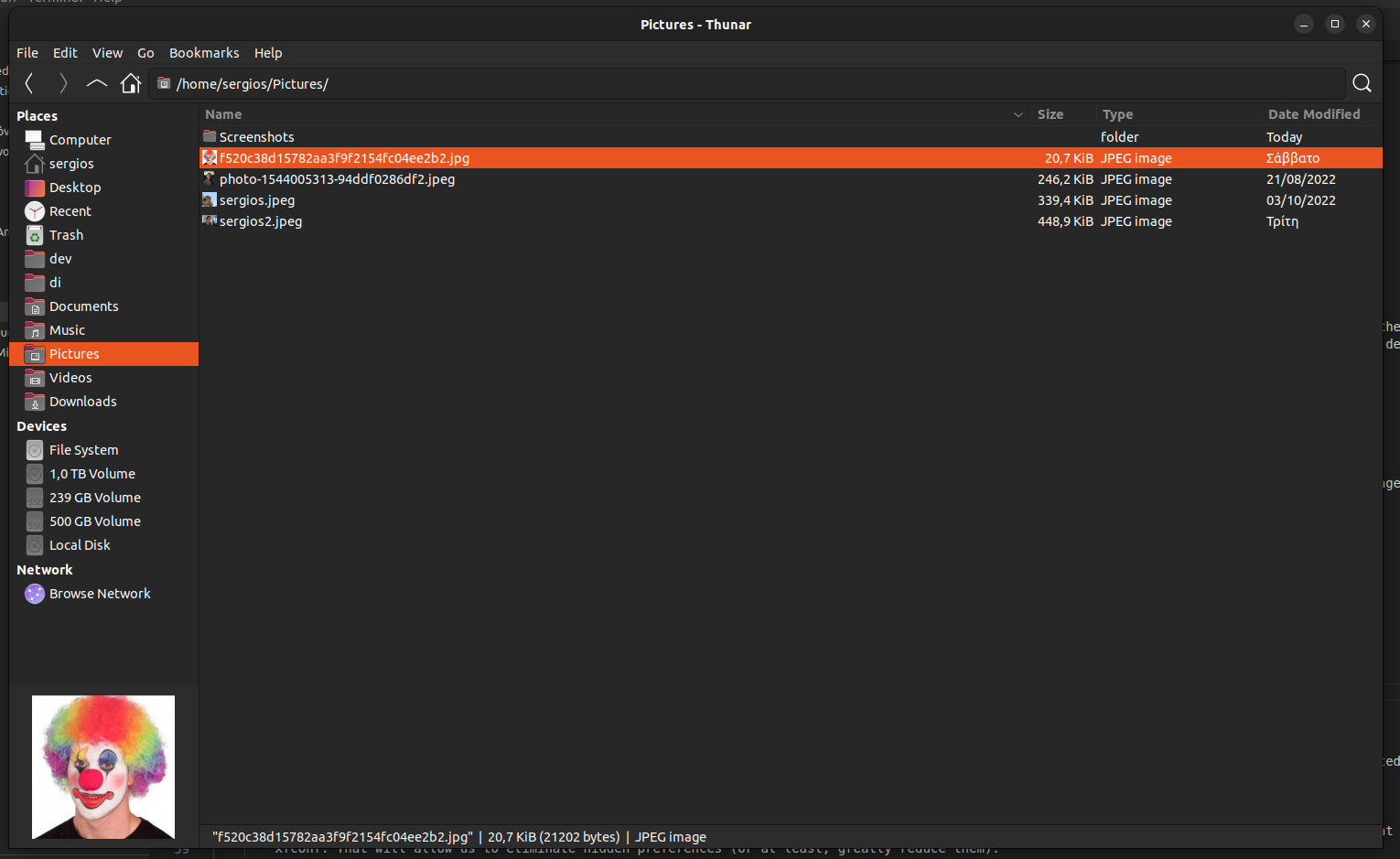
Embedded Image Preview.
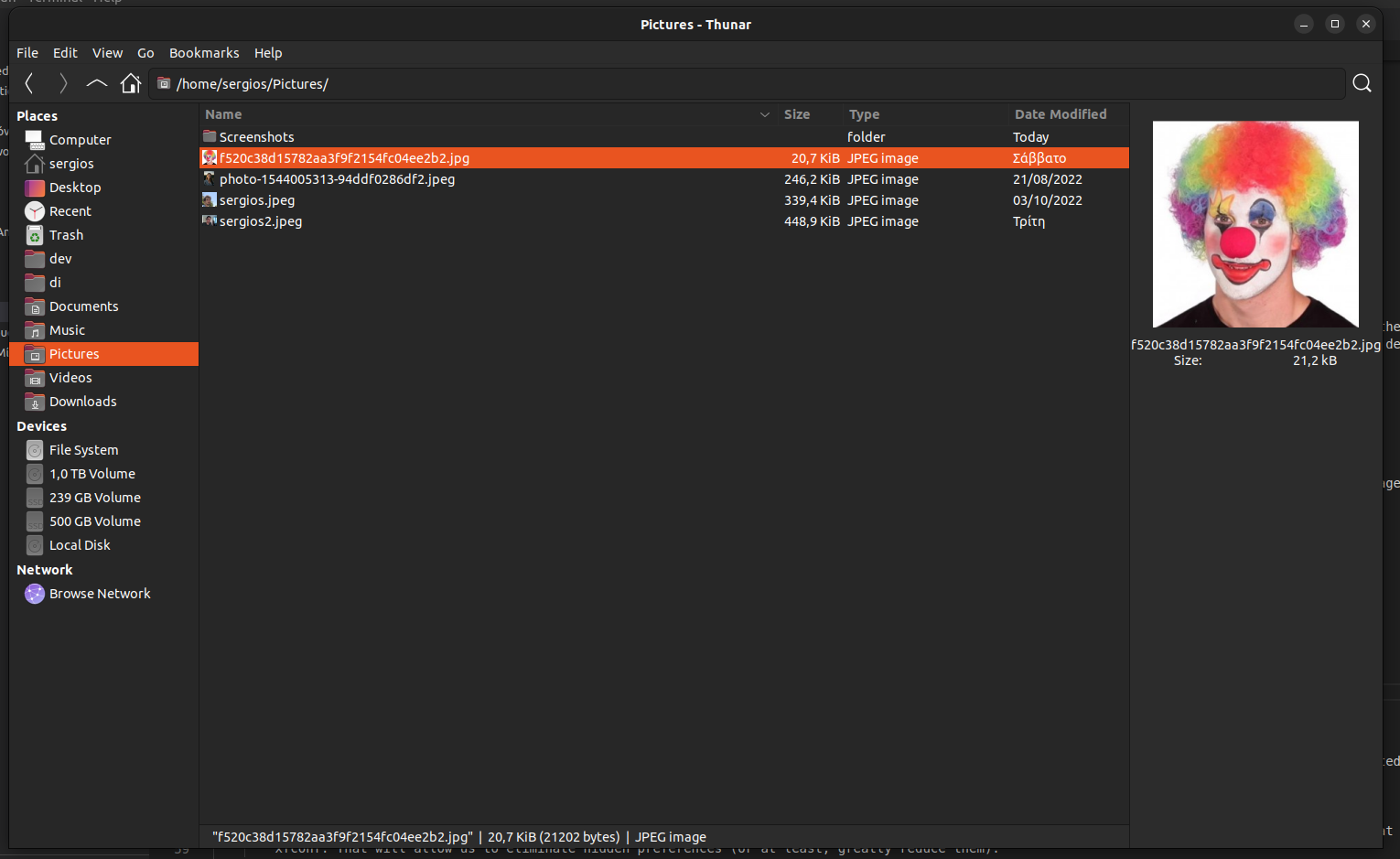
Standalone Image Preview.
Eliminating Hidden Preferences
In my previous blog post, I wrote about wanting to eliminate hidden preferences, which I consider bad design. I've been working on a solution for both Thunar and Xfce Terminal, that reuses code from the Xfce Settings Editor. Instead of hiding preferences, all preferences that are considered secondary/niche, or don't fit in the existing tabs of the Preferences Dialog, we moved them to a new tab.
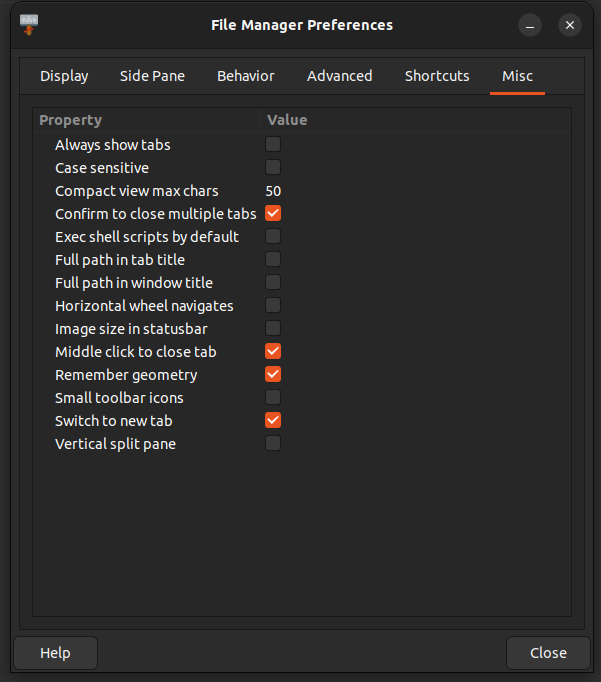
Miscelaneous Preferences.
GSoC’22: The Final Report
My days as a GSoC mentee have ended, and I would like to share everything I have done during these days and what is left. I have posted a few blogs already, so if you have read them, you already know what I have done, and thus you can skip to the last section.
Thunar
(MR #267)
The Bulk Renamer, although very well functional, had a flaw. In case of a new name for a file matches the original name of a file that is yet to be renamed, then the Bulk Renamer used to fail. But now, I have modified it so that it can resolve any such kind of dependencies.
This new enhancement has been successfully added to the Thunar. More details about how this enhancement is added can be found in my blog (GSoC’22: Making Thunar Bulk Renamer More Advanced)
Screenshooter
(MR #37)
Screenshooter had some predefined options that users could choose from once the screenshot was taken. But now, the user can execute a custom action. This new feature has been successfully added to the Screenshooter and tested quite well. More details about this can be found in my blog (GSoC’22: Adding Custom Actions to Screenshooter)
Panel Plug-in
(MR #101) (MR #99)
Panel had an external plug-in Date Time and an internal plug-in Clock. These two plug-ins were somewhat overlapping, and now all the features of these plug-ins are merged into the Clock plug-in. The clock plug-in can now show the date and the time, and the font is also customizable. This merge is almost completed and is just left for the final reviews. Pretty soon, it will be present in Panel 4.17.4.
The Future
An extended goal was proposed to add command line support for the custom actions. Even though my coding period under GSoC is ending, I wish to complete that extended goal to make the custom actions feature more accessible for the users.
GSoC’22: Adding Custom Actions to Screenshooter
The Task
Screenshooter (xfce4-screenshooter), as the name suggests, is an application that takes screenshots. Some action is needed once the screenshot is taken on the captured image. Currently, the application provides four well-defined actions: to save the picture, open the image, copy it into the clipboard, and upload it to Imgur. But some users may want to perform other specific actions after taking the screenshot, such as printing them or sending them over an email. So the task was to allow users to add custom actions that can be executed once the screenshot is taken. Similar functionalities are also present in Thunar and AppFinder.
The Solution
The solution was quite simple. We can have a list of user-defined custom actions stored in the system. Each element in the list will denote a custom action and will have attributes “name” and “command”. The “name” attribute stores the string that will be displayed to the user when selecting the custom action. And the “command” attribute is the command that will be executed. The command can have a ‘%f’ placeholder that can be used to get the absolute path of the screenshot captured. For storing this list, xfconf was used. Each custom action has a unique id associated with it. So if that unique id for a custom action is ‘i’ then its attributes are stored as “actions/action-i/name” and “actions/action-i/command”. The rest of the solution includes providing a simple user interface to modify this list and executing the command.
Under The Hood
With the help of my mentor, André Miranda (AndreLDM), this solution was successfully implemented in MR #37.
The first part of implementation involves creating a preferences dialog box that can be used to modify the list of custom actions. It must be noted that whenever the dialog box opens, it reads the data from the hard disk, and whenever it closes it stores the data back into the disk. This dialog box allows users to add, delete and modify custom actions.
The next part was to add an option for selecting a custom action to be executed once the screenshot was taken. Here again, the list of custom actions is read from the system, but it is never written back as no modifications are done to it. This option is only shown if there are custom actions in the list. If, instead, the list is empty, then this option is not offered. Once the user selects the custom action, its name and command are stored in the ScreenshotData structure.
Then comes the most crucial part, where the custom action gets executed. Here we don’t read the list, just the command and name stored in the ScreenshotData structure. The absolute path of the image first replaces the placeholder text. Then “g_spawn_async” is used to execute the command asynchronously. It’s done asynchronously so that the command may not block the application.
This implementation’s beauty lies in how we have used the already implemented code. Once the image is captured, it is stored in the /tmp directory using the “Save” option. Then the execution part happens. So under the hood, two actions are occurring from the action selection dialog box.
GSoC’22 – File Highlighting in Thunar

About the feature
- The aim of this feature is to enable the user to highlight files/folders across the various different views.
- The feature can be toggled on/off through the View Menu.
- The highlight color can be selected by navigating to the Highlight tab in the properties dialog of the respective file. The properties dialog can be brought about by selecting the Properties option under the Context Menu (Right click on the desired file/folder to show the context-menu)
Requirement: GVFS (Gnome Virtual File System)
Implementation
- The biggest challenge was figuring out how to paint the highlights on the various different views.
- The solution was to use a GtkCellLayoutDataFunc that is called on each item of the view. This way we can set the specific background color in the CellRenderer for each of the different items on view.
- Another challenge that came up was implementing the rounded corners.
- For this, modifications were made to the IconRenderer & a new custom TextRenderer was introduced. The trick was to use cairo to clip the backgrounds & paint the specific color.
This feature is possible with the support by Thunar's lead developers - Alexander Schwinn (alexxcons), Sergios - Anestis Kefalidis (SKefalidis) and Yongha Hwang (MShrimp4).
GSoC’22: Making Thunar Bulk Renamer More Advanced.
The Task
Most of you would be aware of bulk renamer, a handy plugin in Thunar to rename many files together. The plugin is already very advanced and can perform many complex tasks. But sometimes, performing those tasks required more user interference than expected. Consider a case where you are renaming two files, and the new name for one file matches the old name of the second file. Now, no issue arises if the second file is renamed first, and the bulk renamer works perfectly. But if the first file is renamed, it throws an error message as the filename already exists. In the case of two files, the user can resolve such errors manually, but it can become a very tedious task for a large number of files. So the job was to make the bulk renamer intelligent enough to identify the best order in which the files should be renamed so that all such errors are resolved entirely. A trivial usage case for it
is to be able to rename files named file4, file5 … file13 to file1, file2 … file10.
The Solution
Sorting is a critical player in the entire solution. The bulk renamer now tries three runs to rename a file. In the first run, the files are renamed in the user-specified order. If some files are not renamed successfully in this run, then the bulk renamer moves for the second run. Before starting the second run, all the failed files are first sorted in ascending order according to their current name. And then it tries to rename them again. But if still some files fail, it moves to the third run. Here the files are first sorted in reverse order and then renamed. The user is shown an error message if a file is still falling.
Under The Hood
With the support of Thunar’s lead developers Alexander Schwinn (alexxcons), Sergios – Anestis Kefalidis and Yongha Hwang (MShrimp4), the solution is implemented successfully. Implementing the three runs and sorting was not much of a big deal. But the real deal was to manage all the other systems that broke down due to the changes. One of the noteworthy was the undo option. But after rigorous manual testing, the entire system is working correctly and ready to be used by general users. I hope this advancement will highly benefit the users.
With this done, it’s time for me to move on to my task for Xfce-Screenshooter.
GSoC 22 – The First Blog Post
I’m really looking forward to this summer, since my project proposal for this
year’s Google Summer of Code has been selected! I’ll be working on adding
features to Thunar file
manager,
an XFCE application, with the help of my mentor Alexander Schwinn.
My history with XFCE
I’ve been big on open-source ever since my school days, and actually ran
Xubuntu (an Ubuntu distribution with XFCE as its desktop
environment) on my daily driver, an old netbook back in eleventh grade. It was
too slow of a device to run GNOME, so I absolutely had to use a lighter-weight
desktop environment, and compared to alternatives like
LXDE which I didn’t like the aesthetics of, and
pantheon (the default DE for elementaryOS) which still
felt lacking in terms of performance, XFCE was the perfect balance of form and
functionality.
Since then, I’ve done some distro-hopping before settling on my current setup,
hand-rolled with awesome window manager and no DE.
While I generally prefer to use the command-line, Thunar has been by GUI file
manager of choice ever since I started using this setup a little over 2 years
ago. It’s fast, light-weight, and gets the job done without getting in your way,
which is exactly what I need.
Planned features
Thunar does however lack a few features that would be really handy to have,
which is exactly what I’ll be working on.
Undo-redo
Adding undo and redo is an absolute no-brainer for me, and would probably be the
single biggest thing I think Thunar is currently missing. If you’re anything
like me, you’ve often selected the wrong file to move into another directory,
and you have to manually undo it and move the correct file once you realize your
mistake. Implementing this would do away with such frustrating tedium in the
case of minor mistakes.
File counts for folders
Currently, the list view in Thunar has a ‘size’ column which shows the size of
the corresponding file in the listing. However, this column is blank for folders
(or directories). As such, it’s essentially wasted space for directories, but it
could be put to good use showing the count of the files in the folder instead.
Picture-specific maximized thumbnail view
Managing pictures is primarily based on the content of the picture itself,
rather than metadata like the name, date etc. So it would be very convenient to
have a specific view optimized for folders with a large number of pictures,
where the thumbnails take up as much space on the screen as possible. Think
Pinterest, Google images etc.
If somehow I complete the work enlisted in my proposal ahead of time, I plan on
looking at some of the file system synchronisation bugs that some Thunar users
have reported.
Conclusion
I’m glad to have the opportunity to be able to work on open-source tools I
myself use everyday, and feel really lucky to have the support of Google to be
able to work on this over this summer. I’m really grateful for the help I’ve
gotten along the way to getting my proposal accepted from Sergios
Kefalidis, Alexander Schwinn, and other members of the XFCE community.
I’d like to congratulate my fellow XFCE GSoC contributors Yogesh
Kaushik
and Amrit
Borah
as well (who coincidentally are also from different IIITs :grin:).
GSoC’22: The Journey Begins
I am pleased to inform you that my proposal for GSoC with Xfce, under the mentorship of André Miranda, has been accepted. So this summer, I will be contributing to Xfce. Allow me to introduce myself and the work that I will be doing.
I am Yogesh Kaushik, a sophomore at IIIT Delhi in the Computer Science Engineering branch. As per the suggestions of a few intelligent souls in my college, I dual-booted my system and began using Linux for regular use in my first semester of college. My first Linux distribution was Kali, and that’s how I was introduced to Xfce. Over time, I also tried quite a few other desktop environments like KDE and GNOME. But for me, the simplicity of Xfce is simply unmatched. So when I got the opportunity to contribute to it, I can’t refuse it. Luckily the opportunity didn’t turn me down. Enough of my introduction; let me now tell you about my objectives for GSoC this year.
Thunar Bulk Renamer
Thunar is the file manager for Xfce. It comes with fascinating support for renaming multiple files, and that feature is called Bulk Renamer. The Bulk Renamer itself is a very advanced feature, but it may require unnecessary human intervention under some circumstances. If the user wants to rename a file, such that the new name is the original name of some other file, which is yet to be renamed, the system will require user interference. For more clarity, let’s say the user wants to rename a file as “File02”, but there is already a file named “File02,” which is already added to the Bulk Renamer but is yet to be renamed. In such a situation, the Bulk Renamer will raise an error and ask the user to fix it manually. My task would be to make the Bulk Renamer intelligent enough to identify such situations and allow it to act independently in such cases.
This would be my first task in GSoC, so how I am going to do that, you will see quite soon.
Screenshooter
As the name suggests, it is an application to take screenshots in Xfce. The application is exceptionally rich in terms of the functionalities it currently has. And my task would be to make it even more prosperous. I would introduce the support for custom actions in the Screenshooter. For those of you who would have used Xfce a lot, you must have seen the custom actions in Thunar or AppFinder. For those who don’t know it, allow me to elaborate. With the help of custom actions, the user will be able to run custom scripts for the taken screenshot. So if you want to directly upload your screenshot to your favorite hosting platform, you just need to create one script, and that’s it; you are good to go. Similarly, you can do a lot more with it.
Panel
Xfce Panel is where you can find your open apps and a lot of widgets. Depending upon your Linux Distro, you can find it on any four sides. Generally, for Kali, it is present on the top. But you can customize it according to your own choices. Now panel has a lot of plugin, some of which are internal and some are external. My task would be to merge two such plugins, namely “DateTime” and “Clock”. The two plugins are very similar and thus they should be merged for better developments in future.
If the time permits I will do a few more enhancements in the Xfce environment. My journey with Xfce has started and I hope it will go smoothly even beyond the scope of GSoC.
Congratulations to fellow Xfce GSoC contributors Pratyaksh Gautam and Amrit Borah.
A Journey Begins (GSoC – 2022)

Introduction
Hello 👋😁 ! I am overjoyed to announce that my proposal to XFCE for GSoC - 2022 got selected !
Oh ! I forgot to introduce myself. My name is Amrit Borah and I am a somophore undergraduate student at the Indian Institute of Information Technology Guwahati (IIITG), India, pursuing Computer Science Engineering (CSE). I have only recently completed my 4th semester at college.
Tasks in my proposal
So, getting back to the topic at hand - GSoC, I will be taking on 4 tasks for XFCE.
Namely,
- Implementing option to enable expansion of folders in "Details View" in Thunar. (link)The desired outcome -

- Adding user profiles to XFCE Terminal (link)

- I'll also be rewriting the preference-dialog in plain C. Currently it has been written using glade.

Further details on the topics can be found on the links corresponding to the respective tasks.
What I'll be working with -
I will be working with GTK - 3.0 toolkit and C source code for the aforementioned tasks.
Linux, C & XFCE
I first started using Linux back in 2018. Quite frankly, I hated the look of Windows 10. I wasn't really tech savvy enough to really know the fundamental differences between Windows & GNU/Linux. All I could differentiate them by, was their looks. I wanted to make my desktop look and feel like MacOS. I have always liked it's pleasant looks. The MacOS desktop is pure eye candy to me. But unfortunately I never had the pleasure to own a Apple Mac. So I installed Ubuntu. Followed youtube tutorials and customised gnome to look like mac os. Then as year went by I tried out other distros like Pop OS, Opensuse, etc. But the laptop I had then was the Y530 from Lenovo which had Nvidia GTX 1050. Gaming was an issue for me. So I switched back to Windows.
Finally in 2020, when I got my own personal laptop for college, I got a thinkpad E14 with the intention of daily driving Linux. I tried out a variety of flavors on that hardware. It had great keyboard ! On the quest for the perfect Distro, I stumbled upon numerous YouTube channels on Linux notably DistroTube. Following the guide for Arch installation I successfully installed arch and tasted my first WM i.e Awesome WM. Customising it wasn't too bad but since I had little knowledge of lua I found it's config too verbose and hard to hack into ( (whispering...) I wasn't tech savvy back then ) . It was only a matter of time before I started WM hopping much like my distro hoping earlier. Tried out bspwm & xmonad. I even tried learning Haskell, but only went as far as the basics (didn't venture into monads).
But I think I finally settled down on Fedora. Gnome is/was my favourite DE but I always had one gripe i.e stuttering/lagging when switching into the overview view using intel igpus. It has now been solved ig with Gnome 42, at least it's really smooth for me now. So (I sincerely hope ! distro/wm hopping is fun but tedious 😭) Gnome it is then.
Coming onto C now, my first introduction to C programming language was in my CS course. It was one of the topics in my 1st semester. I kinda like C to be honest. I am most familiar with it's syntax more so than other programming languages. But memory management is not fun 😭. Oh the seg faults 😇 ! Later we did have Java as a course. I have a good relation with Java. But the real meaty portions of the OS was taught in my Operating Systems course in 4th sem. I loved that course.Finally got a formal introduction to the depths of an operating system.
I hadn't used XFCE on any of my main machines since they were quite capable hardware. It's only when I bought a raspberry pi 4, I got the taste of the XFCE DE. I am quite impressed with the performant and snappy look and feel of the DE. And Now I have the pleasure to work for XFCE 😄 !
Final thoughts
I have gone on for too long now. So keeping it short, I am really greatful for the opportunity that I am provided with and I thank Sergios - Anestis Kefalidis (my mentor & maintainer of XFCE Terminal), Alexander Schwinn (maintainer of Thunar & xfce org admin for gsoc) & Yongha Hwang (Xfce Developer) for the reviews and support.
I would also like to congratulate my fellow GSoC contributors - Pratyaksh Gautam & Yogesh Kaushik - and wish them the best of luck !
Really excited ! 😁
My contributions to XFCE
Building a Raspberry Pi Compute Module 4 NAS
A few months ago, my venerable NETGEAR ReadyNAS NV+ died. Not sure what
happened; it just shut off one day and refused to turn back on again.
For a while now, I’ve wanted to build my own NAS. I don’t like
proprietary hardware that depends on a manufacturer for OS updates. But
I also didn’t want to build a large, unsightly server, and burn more
electricity on something that would be running 24/7. Granted, my NAS
uses spinning-rust hard disk drives, which likely draw much more power
than most low-power mainboards and CPUs, so maybe the power consumption
concern is a bit overblown.
The 4th generation of the Raspberry Pi hardware has a single PCIe lane.
In the retail model, this is wired to a USB3 chip. The Compute Module
4, however, allows board designers to do whatever they want with it.
I’d hoped for a while that someone would build a board with at least
four SATA ports. I was initially excited about a group called Wire
Trustee, but they abandoned their hardware plans to instead build a VPN.
Then came Axzez, with their Interceptor carrier
board,
which was exactly what I was looking for, with five SATA ports.
Performance-wise, there are certainly better SBCs for this task. But
I’m comfortable with the Raspberry Pi, and see it as a stable, long-term
platform to build on.
What follows is a simple description of my build, and how it worked out.
Parts List
- Axzez Interceptor carrier board
- Axzez Interceptor board adapter (adapts the board for a mini-ITX form
factor) - CM4 module (I ended up with a 4GB RAM/16GB eMMC/WiFi module, as that
was all I could find available without having to wait the better part
of a year for it to ship; ideally I wanted an 8GB RAM model, and
didn’t care if it had WiFi or not) - Fractal Design Node 304 chassis
- Seasonic SSP-300SFG power supply (SFX form factor)
- Mains cable for the power supply (Seasonic doesn’t bundle one)
- 4-pin Molex to dual 15-pin SATA power cable (if you have more than
three hard drives) - SATA data cables (one for each drive)
- CR2032 battery (the Interceptor board has a battery-backed clock)
- Hard drives (I already had these from my previous NAS)
Verification and OS Setup
To start, I wanted to ensure the parts actually worked. I downloaded
the latest 64-bit Raspberry Pi OS (minimal) image, and wrote it to a USB
flash drive. Axzez provides their own OS image, which includes a
patched kernel with support for the included 4-port ethernet switch. I
don’t need this, so I preferred to stick with a more stock OS.
I mounted the boot partition, and configured things for headless
operation,
including connecting to a WiFi network (I wasn’t near an ethernet cable
while doing this), enabling SSH, and creating a default user. I also
added enable_uart=1 to /boot/config.txt so I can hook up the serial
console; this could be useful if the board doesn’t boot for some reason.
I pulled the cover off the chassis, unpacked the power supply, and
seated the CM4 module into the carrier board. I plugged the ATX power
connector into the board, attached the power LED and power switch wires
from the chassis to the board, and plugged the USB flash drive into one
of the board’s USB ports. I plugged in the power supply and flipped the
switch.
Everything turned on by itself, with the power LED glowing blue. I
waited a few minutes, and tried to ssh to raspberrypi.local, surprised
when I was greeted with a password prompt. Signing in presented me with
a pretty standard-looking Raspberry Pi OS system.
Booting from USB is fine, but I wanted the OS on the internal eMMC
storage. So I copied the OS image over from my laptop, and then used
dd to write it to /dev/mmcblk0. I repeated the same steps as before
to enable headless operation. In addition, since I’m not using Axzez’s
OS image, there are a few settings I needed to add to
/boot/config.txt:
The first isn’t required, but could be useful. The second enables the
VideoCore’s I2C bus (not sure if this is required, but the Axzez OS does
this). The third loads an overlay that sets up the RTC (real-time
clock) chip included on the board.
After that, I power-cycled after pulling the USB flash drive. Again I
waited, and ssh’ed into the board. A quick grep through dmesg
confirmed that the RTC setup worked:
(The error is because the clock has never been written to; after the
next clean reboot the clock should have been initialized with the time
at shutdown.)
While I was here, with everything disassembled and easily accessible, I
figured it’d be a good idea to update the OS and install most of the
software I’ll need later. So:
In my case that didn’t upgrade too much, as the OS image I had
downloaded was fairly recent. But I rebooted at this point, just to
ensure things still come up properly after installing new packages.
I use neovim as my primary text editor, so it made sense to install it
here. mdadm and lvm2 are needed for managing my hard disk arrays.
smartmontools monitors disk drive self-reported health stats.
ifplugd is a system daemon that automatically configures wired network
interfaces when ethernet cables are plugged in (or unplugged).
nfs-kernel-server provides an NFS server, which is how I primarily
access files on my NAS across the network. You might also want to
install samba (another file sharing protocol used by Windows
computers).
I also modified /etc/hostname to set the hostname I wanted (and
changed the raspberrypi entry in /etc/hosts), and added an IP
reservation in my router for the ethernet port’s MAC address to ensure
it always gets the same IP address (more or less required for NFS mounts
if I don’t want it to be a pain).
This is also a good time to run dpkg-reconfigure tzdata to set the
desired time zone, and dpkg-reconfigure locales to set the correct
locale.
At this point I noticed that occasionally the board wouldn’t reboot
cleanly (via sudo reboot). Sometimes (I discovered this by watching
output on the serial console), the kernel would panic on reboot,
requring me to power-cycle the power supply to continue. Annoying, but
not a showstopper.
Hardware Assembly
Now that I’d verified everything works, it was time to put the
hardware together. The manual supplied with the chassis recommended
removing the disk brackets before starting, and then installing the
mainboard first, followed by the power supply, and then finally the
disks.
Mainboard
The mainboard was relatively straighforward to install. First screw the
Interceptor board onto the board adapter, with the ports flush against
the side of the adapter. Then attach the board adapter to the chassis
itself, after screwing the four metal standoffs into the chassis.
Orient the board adapter so the ports face out the back of the chassis.
Don’t attach the board adapter to the chassis first, or it will be
really difficult to screw the board into the adapter later.
If you disconnected them, now’s a good time to reconnect the wires for
the power switch and power LED.
Also insert the coin-sized battery into the mainboard.
Power Supply
Next comes the power supply. The power supply I chose came with an
adapter bracket to adapt the SFX form factor to a case accepting an ATX
power supply. I chose SFX because they are often smaller and quieter.
After attaching the bracket, mount the power supply in the chassis, with
the power supply’s fan facing downward toward the opening in the bottom
of the chassis.
The chassis has a power cable extension that you can now plug into the
power supply.
From here you can connect the 24-pin ATX power connector to the
mainboard.
Now that they won’t get in the way, you can connect the three chassis
fans to the fan connectors on the mainboard.
Attach the 4-pin Molex to dual SATA power adapter to the appropriate
power supply lead. This power supply only gives us three SATA power
connectors; if you have four or five drives, you’ll need the extra
adapter.
Drives
Finally it’s time to connect the hard drives. The chassis will hold up
to six drives, though the mainboard only has ports for five of them. I
only had four drives at the time of my build, so I plugged four SATA
data cables into the first four SATA ports on the mainboard.
The drives themselves were fairly straighforward to attach to the drive
rails. I had to move one of the rubber grommets to one of the extra
holes. I was only able to line up three screw holes on the drives I
have, but that’s fine.
After placing the drive rails back into the chassis, I routed power and
data cables to each, and tried to bundle the excess cable as well as I
could.
Wrapping it Up
Before closing up the chassis, I plugged in power and ethernet, and
flipped the power switch on the side of the power supply. To my relief,
everything came up properly, as expected, including all three fans.
I used mdadm and vgchange to manually set up and mount my drive
array to ensure everything was working properly (later I’d write a
script to do it on boot).
I deleted /etc/wpa_supplicant/wpa_supplicant.conf to disable WiFi,
since ethernet was working fine.
Finally, I closed up the chassis and replaced the thumb screws.
Benchmarking
I feel like I’d be somewhat remiss if I didn’t post some performance
numbers. Take this with many many many grains of salt. There are some
oddities in my setup: my RAID5 array is actually two RAID5 arrays,
joined into one logical partition using LVM2. I did a lazy dd test
for this, to an ext4 filesystem on the RAID5+LVM2 volume, like so:
1dd if=/dev/zero of=bench bs=4M count=10000 status=progress oflag=direct
This gave me sustained write speeds of 137 MB/s.
When reading it back, via:
1dd if=bench of=/dev/null bs=4M status=progress iflag=direct
… I get sustained read speeds of 394 MB/s.
I know this isn’t particularly scientific, and I’m sure there are flaws
in this benchmarking process. I don’t particularly care; I’m merely
just trying to get a vague idea as to whether or not things are working
reasonably well. These speeds are more than sufficient for my purposes.
I did not test any read/write scenarios more complicated than this, and
I didn’t do any performance tuning whatsoever.
Final Thoughts
Overall I’m really happy with how this build turned out. Right now I am
just manually managing the storage and network shares on the box, though
I have considered installing something like Open Media Vault.
There are a few minor annoyances and omissions that would be nice for
Axzez to implement in a future board revision:
- The fans don’t appear to be controllable or monitorable by the OS.
The board supports three-wire fans, which should at least allow us to
monitor fan speed (helpful both for control feedback as well as
alerting if a fan has died). Controlling the speed could be done
using the CM4’s builtin PWM hardware (maybe? though I believe there
are only two channels), or by adding an external fan controller chip. - There isn’t a way to flash the CM4 bootloader or modify the CM4’s
boot settings. With a CM4 I/O devkit, you can place a jumper on the
board to put it into usbboot mode, which allows you to do all this
from a USB-connected computer, but the Interceptor board doesn’t
provide this ability. - I didn’t need to make use of the 4-port ethernet switch, but it would
be great if Axzez could work to get the drivers for it upstreamed so
it doesn’t require a custom kernel. At the very least, a DKMS
package would be sufficient. To their credit, they set things up so
single-port operation works just fine if you don’t use a patched
kernel, which is fine for my purposes. - It would be a nice addition to expose another pair of pins so I could
connect the chassis’ HDD activity LED as well. - Documenting how to enable the RTC chip on a vanilla Raspberry Pi OS
would be nice (it wasn’t hard to figure out; I just read through
their kernel patch).
While the Interceptor certainly isn’t meant to be a general-purpose
board, exposing some of the unused GPIO pins could also be really useful
(for example, I could probably build my own fan controller daughter
board, or set up the HDD activity LED trigger myself). I’ve heard that
the two 40-pin FFC connectors expose an I2C and two GPIOs each, but it’s
not the most convenient thing to work with. (Having said that, I’ll
take what I can get!)
One thing that I am incredibly happy with is that the board works with
the stock Raspberry Pi OS. The last thing I want is to be stuck on an
old version of the OS after the manufacturer loses interest in
supporting it, which is pretty much inevitable for most products, and is
the situation I ended up in with my old retail NAS. With the exception
of the ethernet switch, everything on this board has upstream support,
and the switch gracefully degrades to a single usable ethernet port when
booted with the stock Raspberry Pi OS kernel.
As for the rest of the hardware:
- The chassis I chose doesn’t make it possible to access the drives
without opening it up. I could have chosen a chassis that has
hot-swap bays, but I personally don’t need this, so I didn’t bother.
I’m actually not sure if the SATA controller on the board supports
hot-swap. - This chassis has USB3 ports on the front. Because the CM4’s single
PCIe lane is taken up by the SATA ports and ethernet switch, it does
not have USB3 capability. Presumably I could cut the USB3 connector
off the chassis’ cable and use the ports as USB2 ports (the main
board has a pin header for extra USB2 ports), but this isn’t a
priority for me to set up. - There’s currently no back panel on the chassis around all the ports.
It’s not that big a deal, though I’m afraid of dust getting drawn in
through there. - I haven’t measured the power consumption of the power supply I chose.
I think it should be reasonably efficient at the sub-100W power draw
expected while idle, but it’s likely not as efficient as a smaller
supply would be. I debated going the “pico PSU” route, but decided
to stick with something more traditional for now.
I’m very pleased that Axzez decided to design and build this carrier
board. I’ve been waiting for something like this ever since the CM4 was
released, and the board did not disappoint.
Settings GUI
Welcome back! It's time to talk about hidden preferences.
The problem
It's a sunny day and you boot up your PC, which uses Xfce, ready to do some file-organizing. You open Thunar and suddenly you realise something. All this time you would have prefered sorting to be case-sensitive. You open the Preferences Dialog but alas, there is no relevant setting. You are left disappointed, hoping that Thunar devs add this option in a future release. You might even create a feature request.
Little do you know, Thunar does have a preference to enable this functionality but it is hidden away. You can only find it in the wiki and even that is not a guarantee because we might forget about updating the wiki. Then you have to go and manually enable it in the Settings Editor or using xfconf-query.
Thunar is not the only Xfce application that has hidden settings, Terminal is another prominent application that has preferences that don't showup in its preferences dialog.
Settings Editor à la Shortcuts Editor
If you have been following the development of Xfce you probably know that I created a Shortcuts Editor widget that can be easily integrated in Xfce apps. Presently, Thunar, Mousepad and Terminal use that widget to give users an easy way of editing shortcuts.
I've been working on a similar widget for Settings based on the Xfce Settings Editor. The end goal is to have a simplified version of that settings editor that can be easily integrated in Xfce Apps that use xfconf. That will allow us to eliminate hidden preferences (or at least, greatly reduce them).
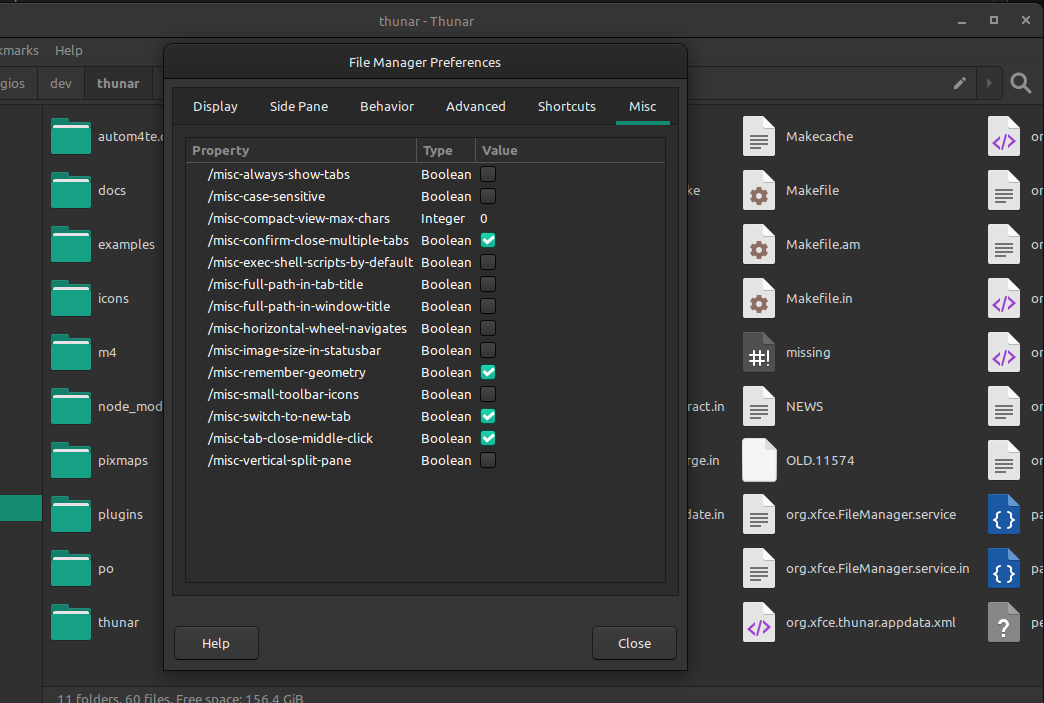
XfceSettingsEditor integrated in Thunar's Preferences Dialog.
Searching in the Xfce Settings Editor
The other big feature that I've been working on is Search/Filtering for the existing Xfce Settings Editor. Simon had started working on a patch for this but never finished it, so I continued where he left off. I am not planning to include this functionality in the separate widget that was described previously.